
Built for crews, gloves and bad signal.
Today’s jobs on a list and a map, en route and on site with a tap, close-out with photos, and hand-off to another worker.
What it does
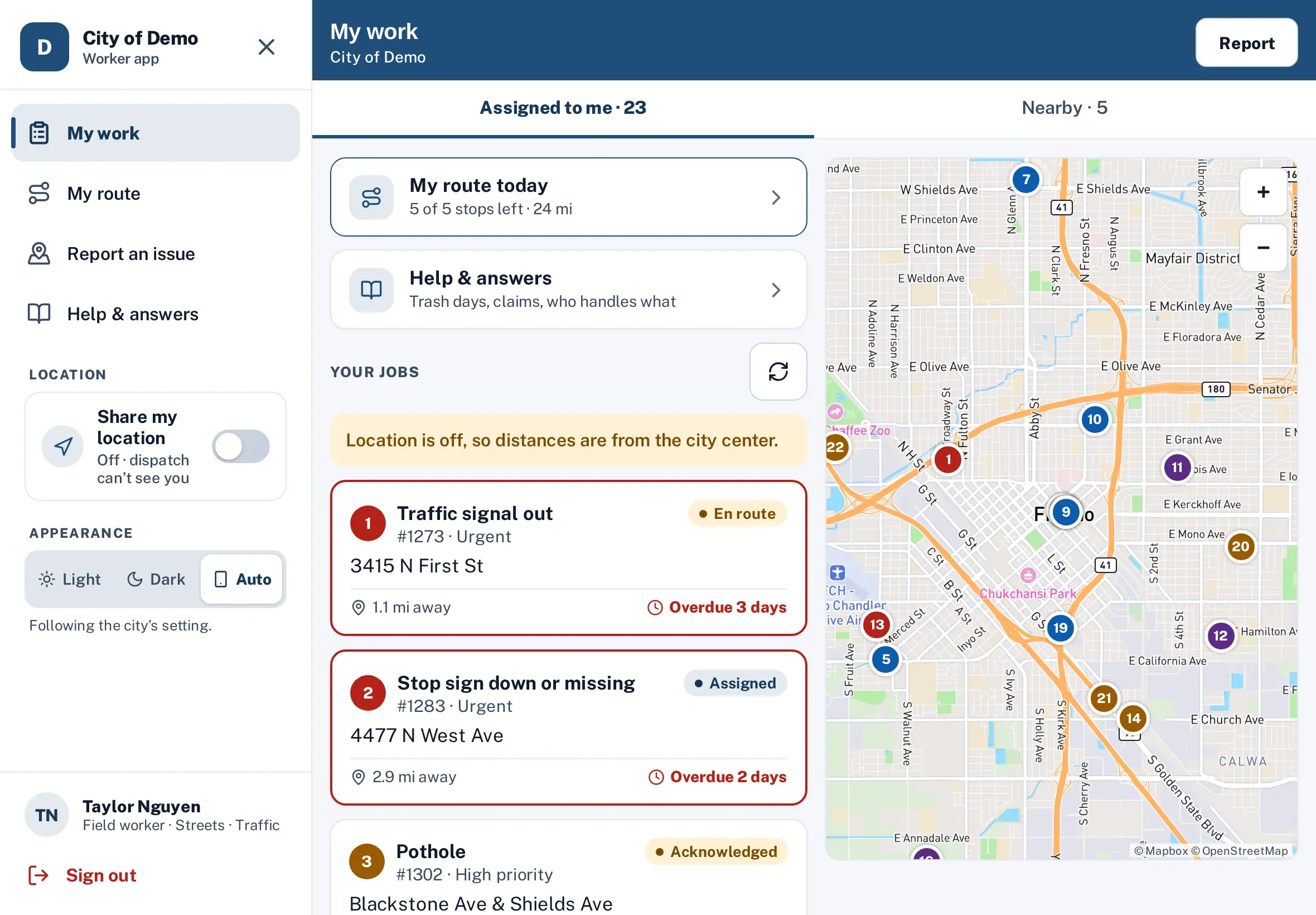
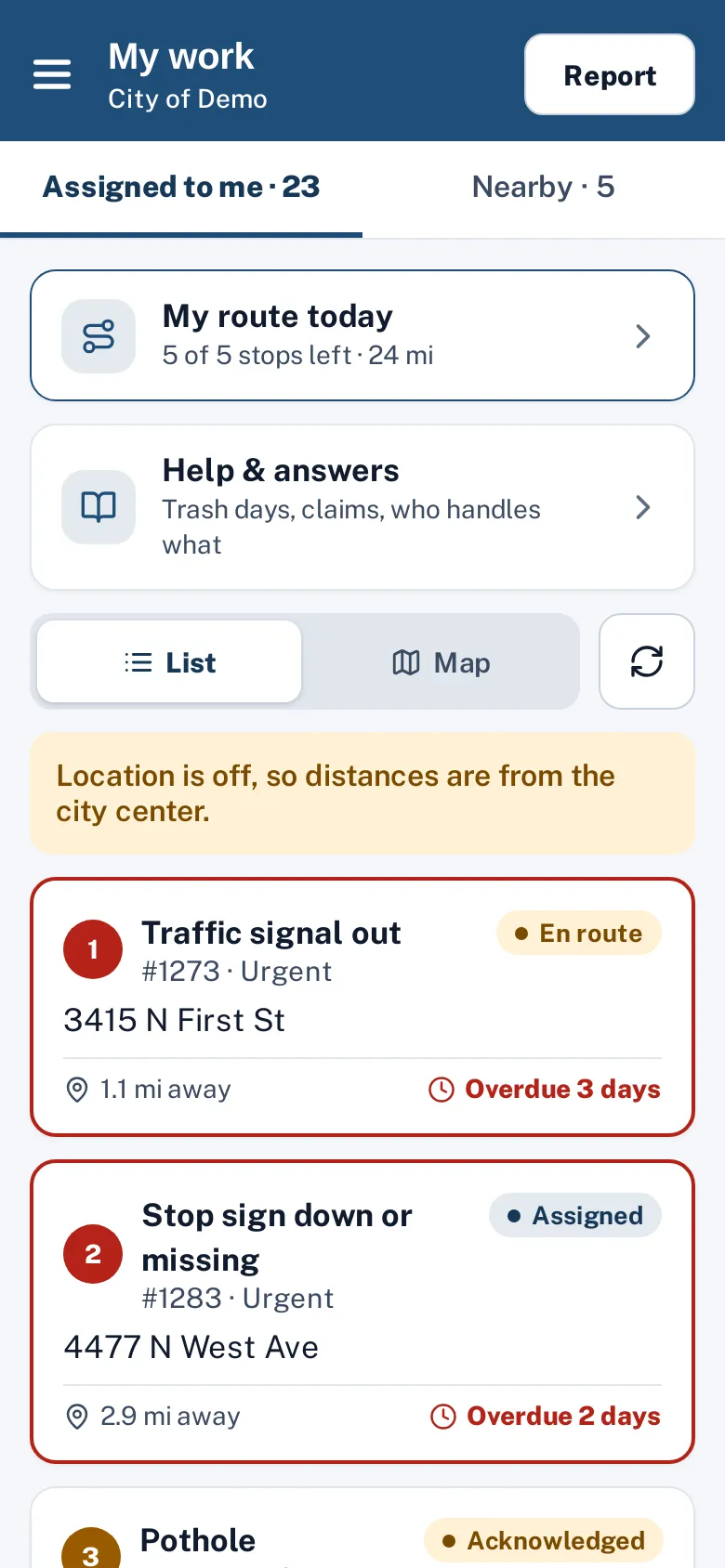
The Sentra 311 worker app puts a crew member’s day on their phone or iPad: jobs assigned to them, open requests nearby, and today’s route in the order dispatch planned it. Buttons are large, text is readable in sunlight, and the app follows the phone’s light or dark setting — handy in a truck before dawn.
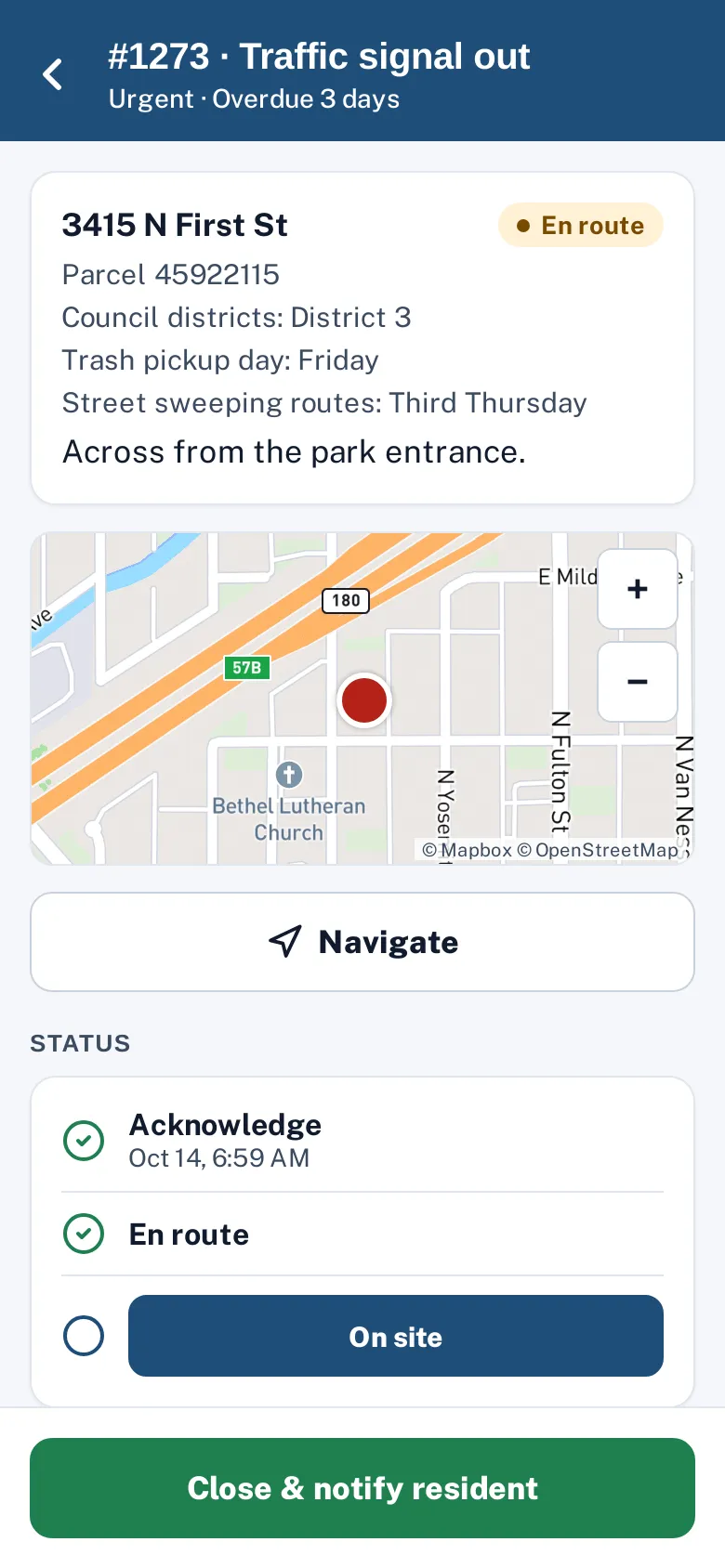
A job moves from en route to on site to resolved with a tap each. Close-out asks the request type’s questions, takes after photos and shows exactly what proof is needed before the job can close. Workers can put a job on hold with a reason, hand it off to another worker, or file a new request for something they find on the street.
Crews get paper lists in the morning, and the office never hears what happened until the end of the day.
How it works
- Crew
See my work
Assigned to me and nearby, sorted by priority and distance.
- Crew
Work the job
En route, on site, hold or hand off, with the resident’s photos and answers.
- Side path: Crew
Report what you find
File a new request from the field with a photo and the location filled in.
New request in the queue
- Side path: City staff
Hand off or put on hold
Hand a job to another worker or pause it with a reason; the SLA clock pauses on hold.
SLA clock pauses on hold
- Crew
Close it out
After photo and the city’s close-out questions, with what this type requires.
Key features
My work and Nearby
Assigned jobs sorted by priority and distance, plus open requests within a mile, as a list or a map.
My route today
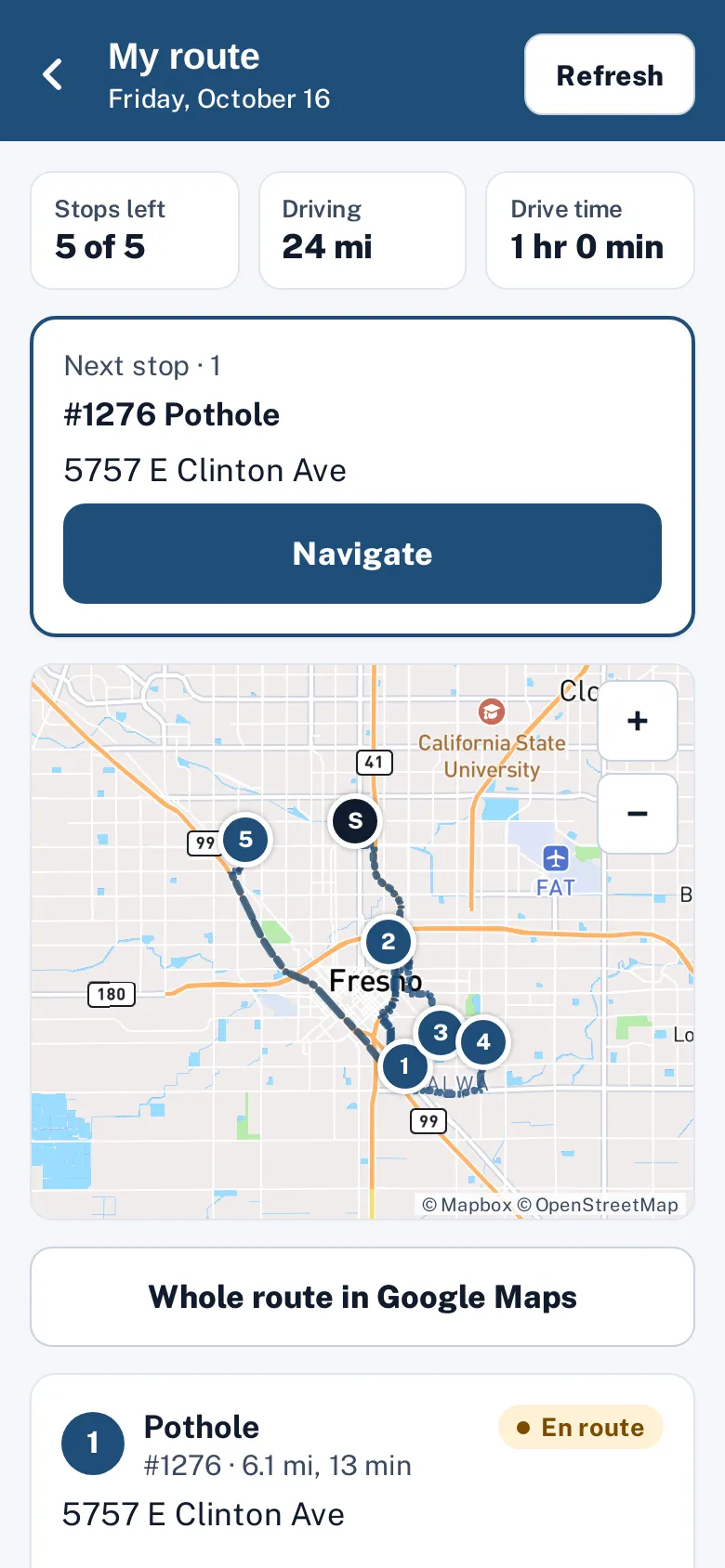
Stops in order with miles and drive minutes, a Navigate button to the next stop and the whole route in Google Maps.
Statuses in one tap
En route, on site, on hold, resolved — each change updates the resident and the office.
Close-out with photos
The type’s close-out questions, after photos and the proof checklist before closing.
Hand off to another worker
Move a job to the right person without calling the office.
Help & answers
Answers to show residents, in a large-text mode.
A day with it
A crew member opens the worker app at the yard.
- “My route today” shows five stops in order, 24 miles and the next stop.
- They tap Navigate, which opens directions in their maps app, and mark the first job en route.
- On site, they review the resident’s description and photo, fix the problem, and tap Resolve: the app shows the type’s close-out questions and the proof checklist — an after photo is required for this type — so they take the photo, choose “Fixed” and submit.
- The resident gets an email with the photo; the next stop is ready.
- Between stops, a resident asks about bulky item pickup; the crew member opens Help & answers, finds the article and taps “Show the resident”.
- Later they spot illegal dumping and file a field report with a photo — the location fills in from the phone.
In practice
- Five stops in order. A crew member follows “My route today” with Navigate to each stop.
- Close-out with a photo. The proof checklist reminds the crew to take the after photo before leaving.
- Something found on the street. The crew files a field report for illegal dumping with a photo.
Assigned, nearby and handed off
The My work screen has two tabs: Assigned to me, sorted by priority and distance, and Nearby, with open requests within a mile in the worker’s departments. A job that belongs to someone else can be handed off to another worker with a note, and a job that can’t be finished today can go on hold with a reason, which pauses the SLA clock.
Accessibility, security and privacy
Field workers see requests for their own departments; resident contact details are hidden from them. The app runs in any phone browser today.
Getting started
Unlimited field workers are included for every city. Crews sign in on their phones; the help center has a worker guide with screenshots of every step.
Who uses it
Field crews
Today’s work, the route and the close-out in one place.
Crew leads
Hand off and re-plan without calling in.
Supervisors
See progress as it happens.
Residents
Get updates and after photos as the crew works.
Questions cities ask
Does it work without signal?
Yes, in the native iPhone and iPad app: today’s jobs and route are saved on the phone, and status changes and close-outs with photos send once there’s signal again. The browser version needs a connection.
Do workers need training?
Most learn it in one shift. The built-in worker guide covers every screen.
Does it work without signal?
Yes, in the native iPhone and iPad app: jobs and routes are saved on the phone, and changes send once there’s signal, with no duplicates. The browser version needs a connection.
Can workers see residents’ phone numbers?
No. Contact details are hidden from field workers.
How many workers can use it?
Unlimited, for every city.
Can workers file new requests?
Yes, for any department, from the field report screen.