
Make it look like your city.
Banner photo, color, logo, headline, notices and featured request types for the report page, plus colors and light or dark appearance for each app, with a live preview.
What it does
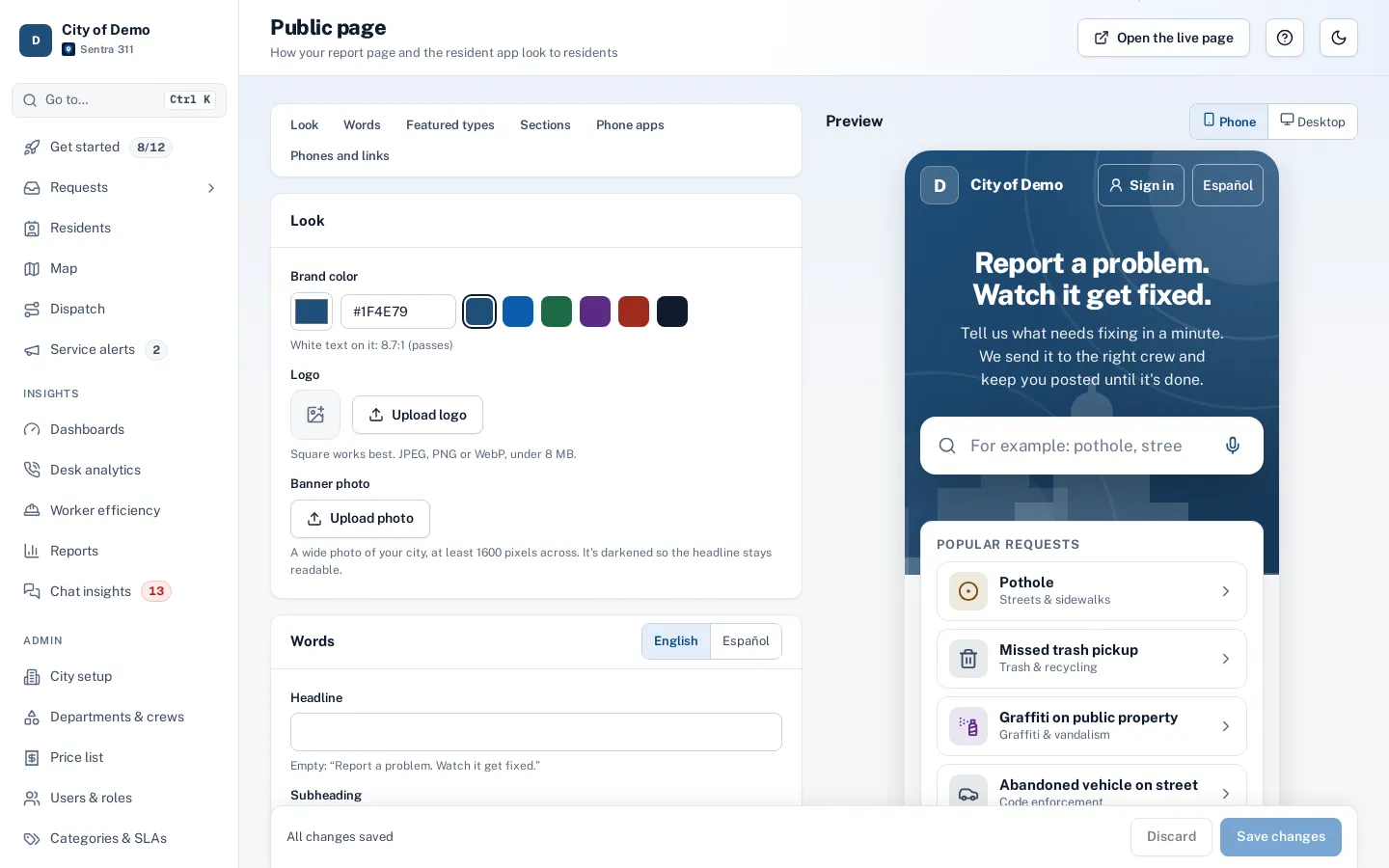
Admin › Public page is where a city makes the report page its own: a banner photo with a focal point, the brand color, a headline and subheading in English and Spanish, an optional notice (for example a holiday schedule, with an end date), the featured request types and which sections show. A live preview shows the page on a phone or a desktop before you save.
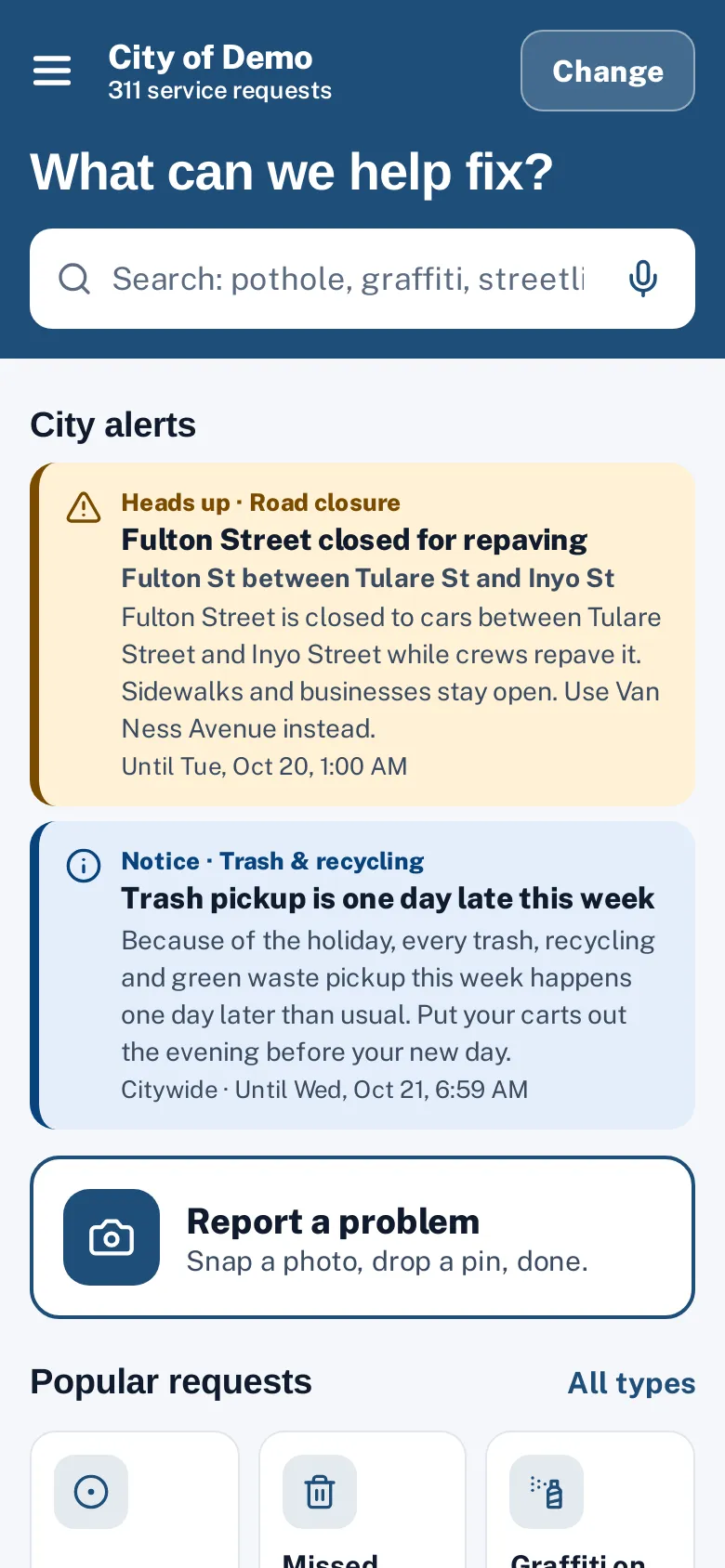
The same screen sets the phone apps’ look: a color for the resident app and one for the worker app, and whether each appears light, dark or follows the phone.
Residents trust a page that looks like their city.
How it works
Design the page
Banner with a focal point, headline in English and Spanish.
Theme the apps
A color per app; light, dark or follow the phone.
Preview and publish
See the real page before you save.
Key features
Banner, color and logo
Colors are checked for 4.5:1 contrast with white text before they can be saved.
Headline, subheading and notice
English and Spanish, with an end date for notices.
Featured types and sections
Pick up to nine featured types; show or hide popular types, all types, tracking and the emergency reminder.
App themes
Colors and light, dark or follow-the-phone appearance for each app.
Live preview
See the real page before saving.
A day with it
The banner photo uploads as JPEG, PNG or WebP under 8 MB, with a focal-point picker so the important part stays in view when the banner is cropped on phones.
- The color must give at least 4.5:1 contrast with white text; the admin shows the ratio as you choose and won’t save a color that fails.
- The logo appears in the header.
- Headline, subheading and notice each have English and Spanish fields, and notices can disappear automatically after an end date.
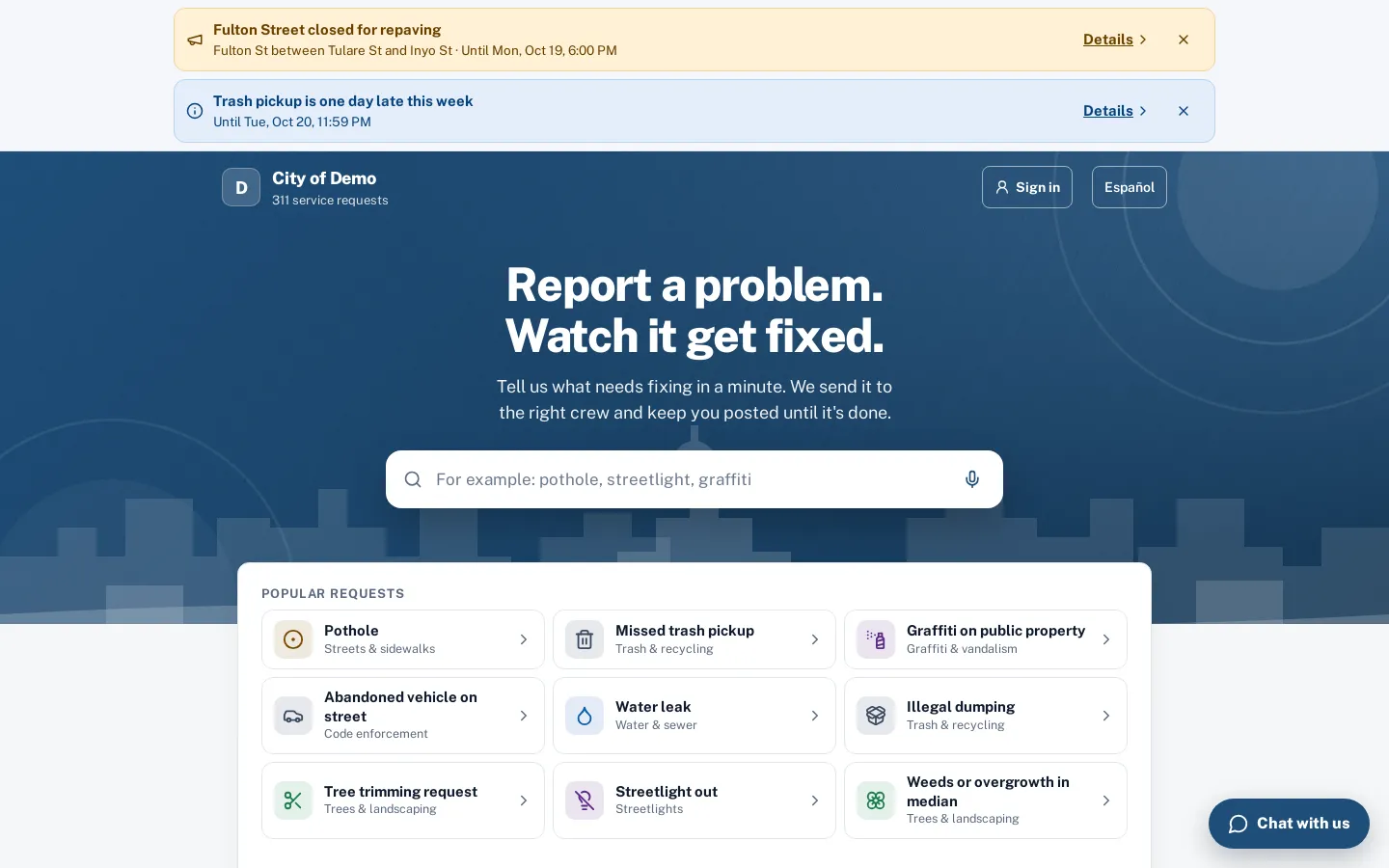
- Featured request types (up to nine, in your order) replace the automatic “popular” list.
- Sections can be turned on or off:
- popular requests
- all types
- the tracking box
- the emergency reminder
- the skyline illustration
- Phone numbers and up to six footer links (for example, “Trash schedule”) finish the page.
In practice
- Holiday notice. A notice about the holiday trash schedule shows until the end date.
- Featured types for the season. Leaf pickup is featured in the fall.
- A new city color. The admin picks a color and sees the contrast ratio before saving.
Phone app themes
Each app has a color (by default the public page color) and an appearance: light, dark or follow the phone. Mini previews show both apps in light and dark as you change settings.
Accessible by design
The admin won’t save a color that fails contrast with white text, because buttons and headers put white text on it. Every setting has an English and Spanish version where residents see text.
Who uses it
Communications staff
Keep the page on brand.
City admins
Change notices and featured types in minutes.
Questions cities ask
Can we use our own colors exactly?
Yes, as long as white text on the color passes 4.5:1 contrast — the admin shows the ratio as you choose.
Do changes need a developer?
No. Changes save from the admin page and appear immediately.
Can we show a holiday notice?
Yes, with an end date so it disappears on its own.