
Bring your history. Undo if you need to.
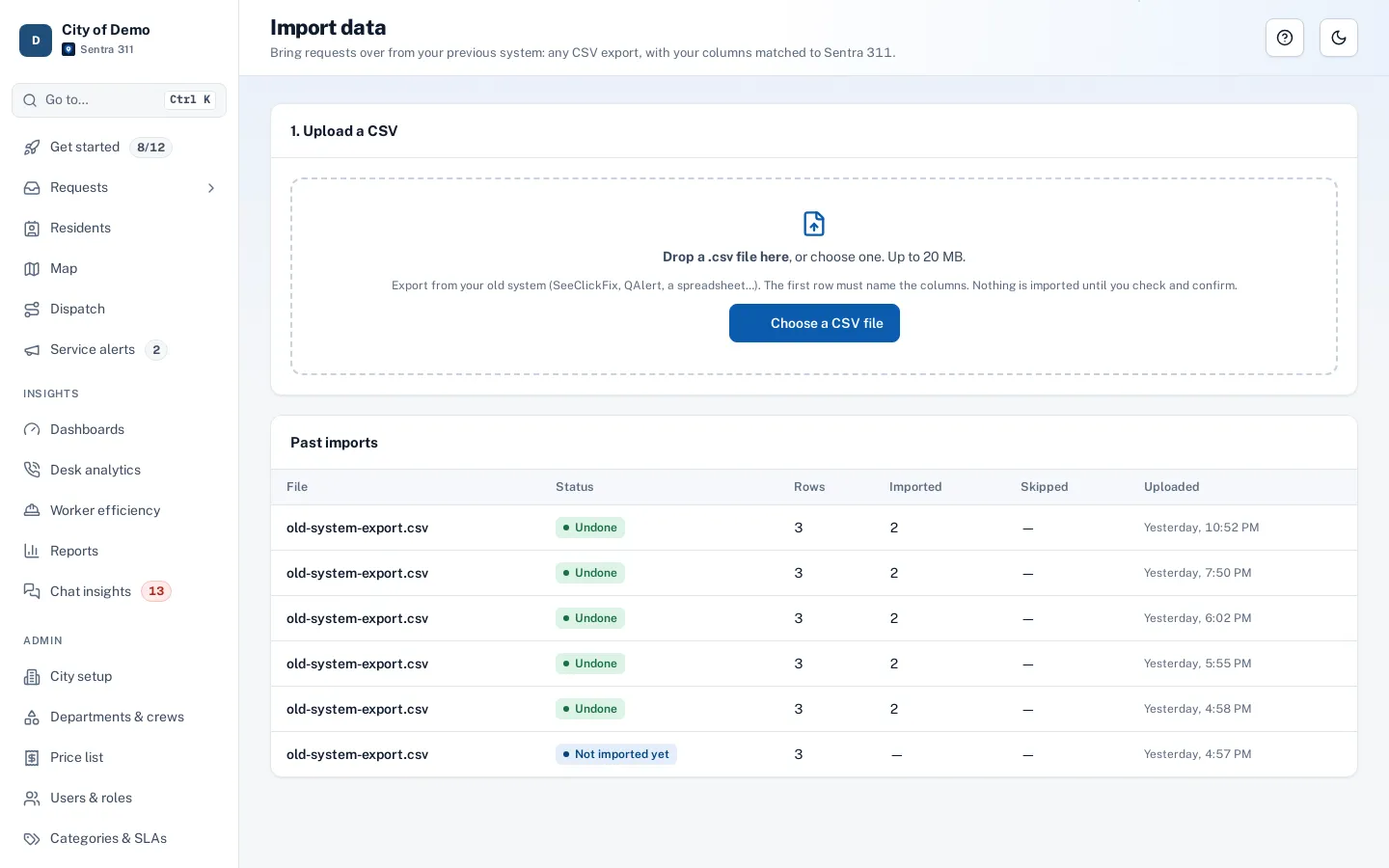
Moving to Sentra 311 doesn’t mean starting from zero. Your old requests come over from a CSV, with a dry run first and one-click undo.
How a move works
Export
A CSV from your current system or spreadsheet. Most systems can export one.
Match
Columns and values matched to Sentra 311, with suggested matches for request types, statuses and priorities.
Dry run
See exactly what will be created before anything changes.
Import, or undo
Runs in the background. One click undoes the whole import.
One click undoes the whole import
Importing is one step of getting live. See how onboarding works: kickoff, the setup checklist, training, testing and go-live.
What comes over
- Request type, status, priority and department
- Address and location
- Description and dates (filed, closed)
- Your old ids, kept as external references
- Resolution text
What we help with
- Your first import, as part of setup
- Matching your old categories to your new request types
- Re-running safely if you export again
- Your districts and GIS layers from your ArcGIS services
Before you export
- Export a CSV from your old 311 system, or save your spreadsheet as CSV (up to 20 MB per file).
- Include the request number, type, status, address, department and the filed and closed dates. Those are the columns the importer matches.
- Keep your old category names as they are. The importer suggests a request type for each by meaning, and staff decide any ties.
After the import
Imported requests are history: they don’t email residents, and they show in reports and dashboards like any other request. Each one keeps its old number as a reference and is tagged with the import it came from.
If something looks wrong, undo removes that whole import in one step. Fix the mapping and run it again. See the importer for the screens.