
Answers in the crew’s pocket.
When a resident stops a crew to ask a question, the answer is a tap away, in large print, in English or Spanish.
What it does
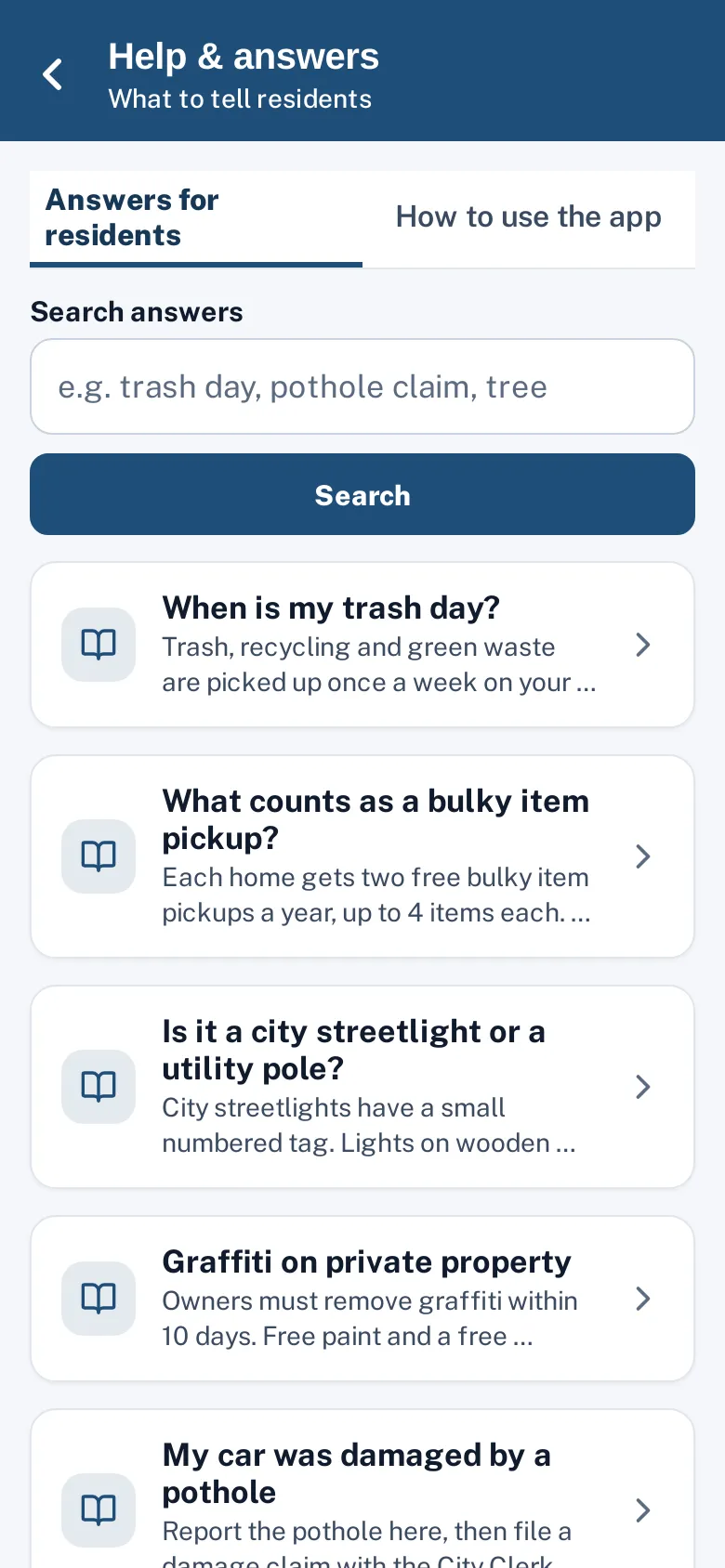
Residents stop crews on the street with questions: when is bulky item pickup, who owns this light, how do I report a neighbor’s overgrown lot? The worker app’s Help & answers screen gives crews the same answers residents see on the report page, from your city’s knowledge base.
A “Show the resident” button turns any answer into a full-screen, large-text page that’s readable in sunlight — so the crew member can simply hand over the phone. A second tab, “How to use the app”, holds the worker guide with step-by-step articles and an Ask button that answers questions about the app itself.
Crews get asked about trash days, permits and parking. They shouldn’t have to guess.
How it works
Search answers
The same help articles residents see, from the worker app.
Show the resident
A full-screen, large-print view that reads in sunlight.
Count it
"This answered it, don’t file" counts as a request headed off.
Key features
Search every answer
The same published articles residents see, in English or Spanish.
Show the resident
Full-screen, high-contrast, large-text mode.
Answers on every job
Articles linked to the request type appear on the job screen.
“This answered it — don’t file”
On field reports, answered questions are counted instead of filed.
Worker guide and Ask
Eleven how-to articles and an assistant that answers questions about the app.
A day with it
The Help & answers screen has two tabs.
- “Answers for residents” lists every published article from the city’s knowledge base with search, in English and Spanish when the article has both.
- Opening an article shows the full text; “Show the resident” switches to a full-screen, large, black-on-white version that stays readable in sunlight and in either theme, with a language switch and a Done button.
- On each job, an “Answers for this type” section lists articles linked to the request type, expandable inline.
- On field reports, matching answers appear before filing, and “This answered it — don’t file” counts the question as answered by a worker instead of creating a request.
In practice
- “When is bulky pickup?”. The crew member shows the resident the article in large text.
- A new hire. A new crew member learns the close-out steps from the worker guide.
- A question about the app. Ask answers “how do I hand off a job?” with a link to the guide.
Learning the app
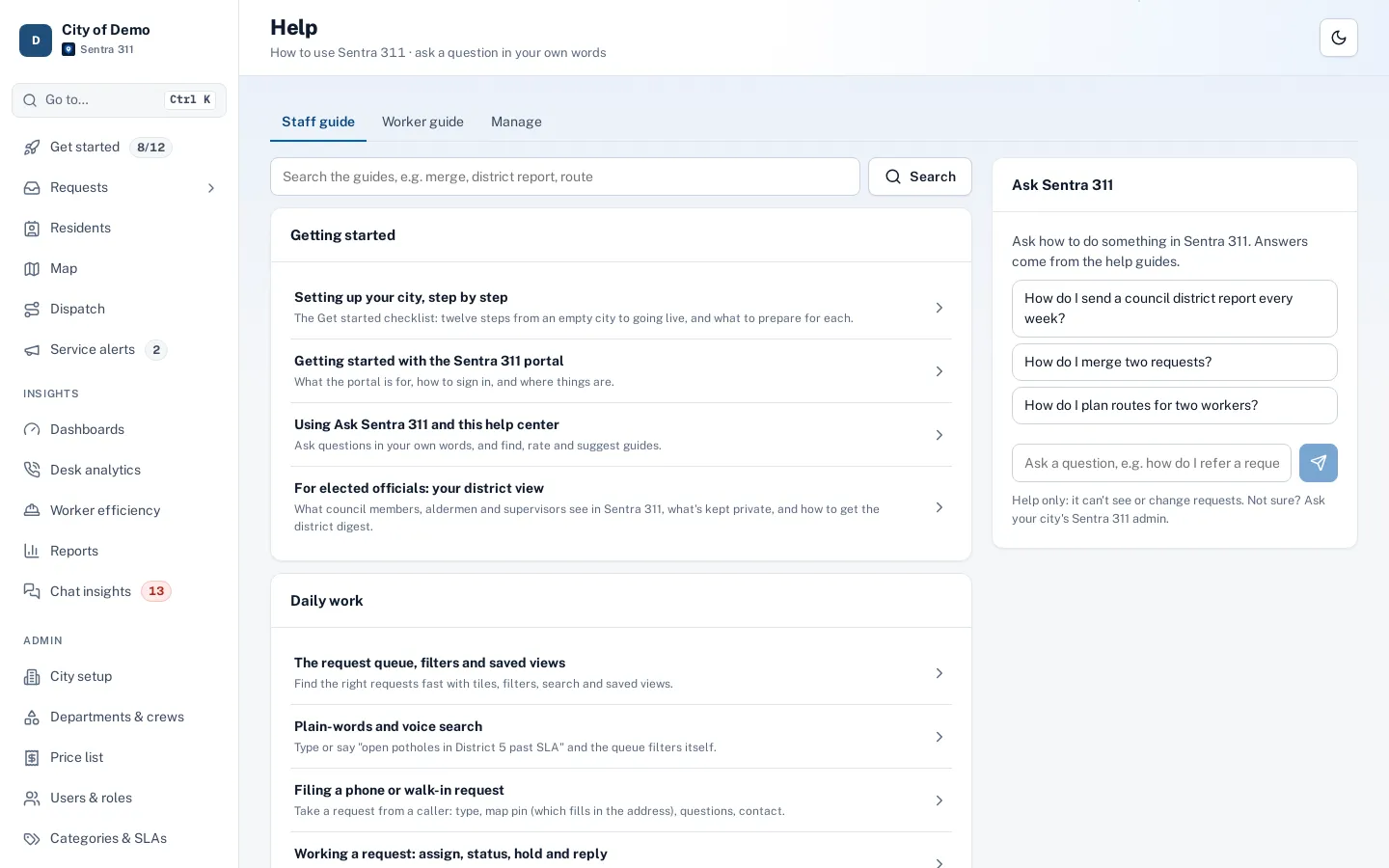
The “How to use the app” tab holds the worker guide: getting started, my work and the map, a job from start to finish, on hold and hand-off, field reports, my route, answering residents, what residents see, appearance, and working without a signal. An Ask box answers questions about the app from those guides and links the article it used.
Why answers in the field matter
Crews are often the only city employees residents meet in person. A crew member who can answer “when is bulky item pickup?” or “who owns this streetlight?” on the spot saves the resident a call and the front desk a ticket, and gives the same answer the website and the call-taker would give.
Getting started
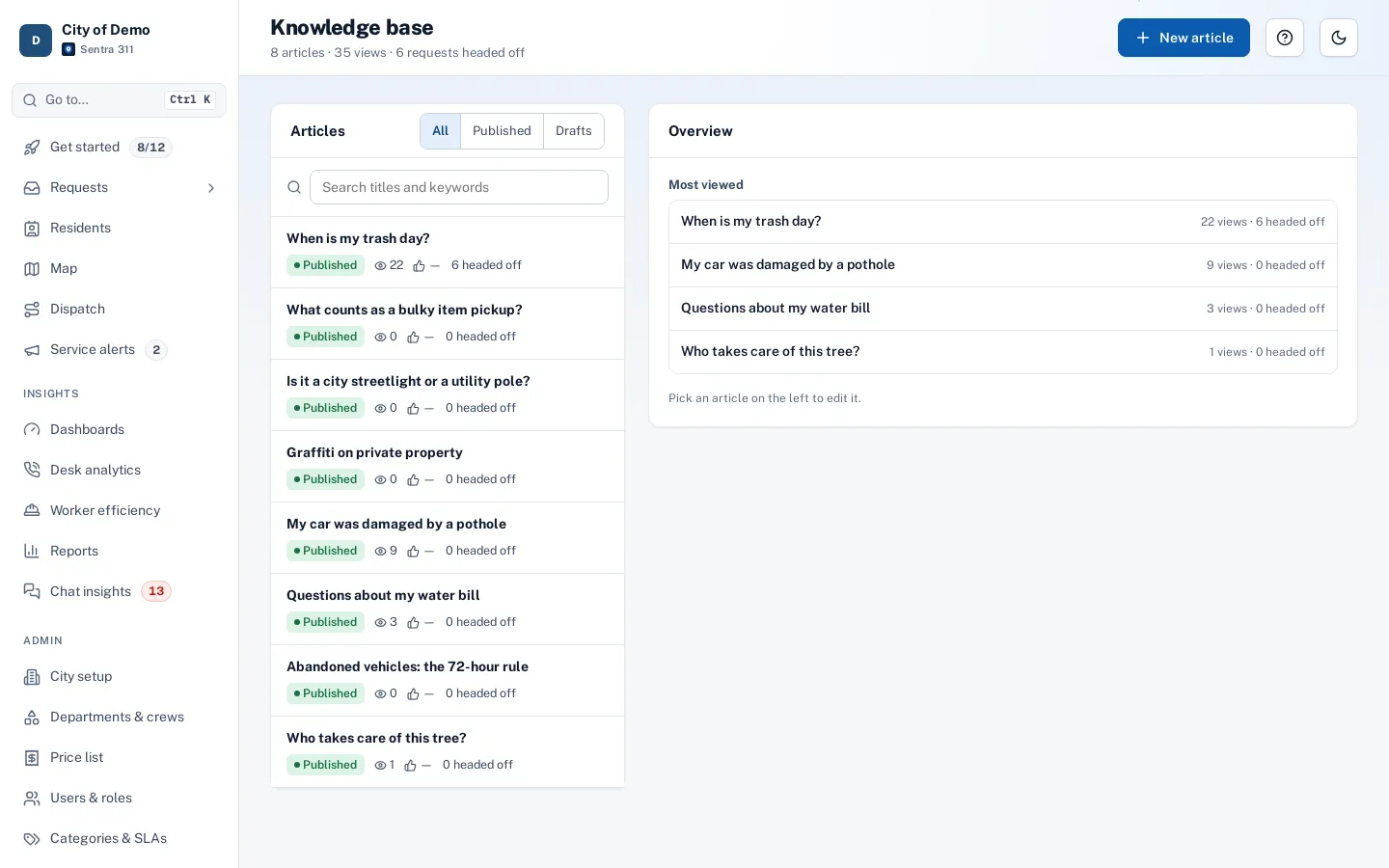
It uses the articles you already publish. Add field-specific articles any time from Admin › Knowledge base.
Who uses it
Crews
Answer residents on the spot.
New hires
Learn the app from the built-in guide.
Communications staff
One set of answers for every channel.
Questions cities ask
Can crews edit articles?
No. Admins and department heads edit; crews read and show them.
Does it work in Spanish?
Articles with Spanish text can be shown in Spanish with one tap.
Do answers work without signal?
In the native iPhone and iPad worker app, yes: answers and guides saved on the phone open without signal. The browser version needs a connection.