
Move your history over, and undo if needed.
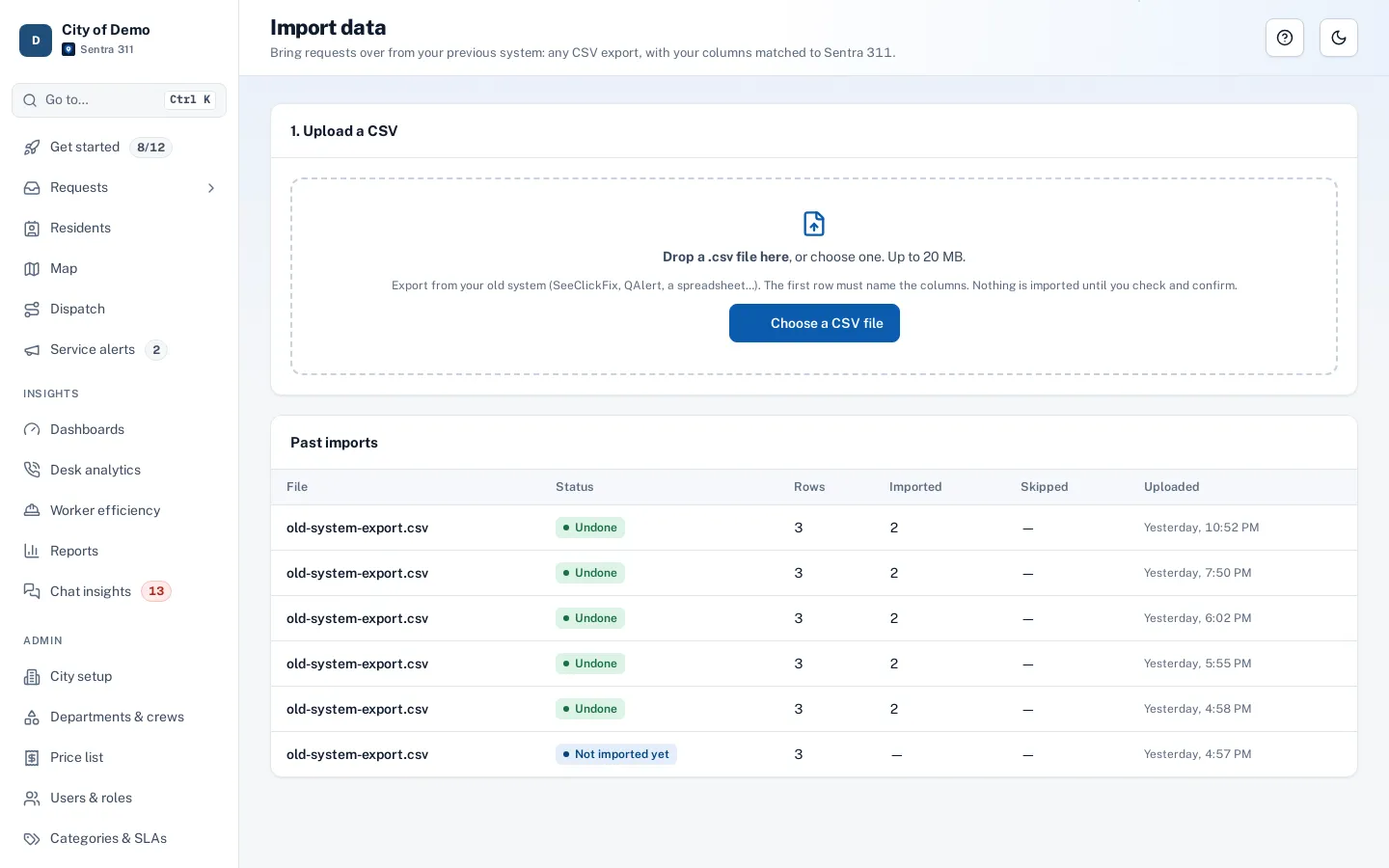
Upload a CSV from any system. Sentra 311 matches columns and values, shows a dry run, imports in the background and can undo the whole import.
What it does
Switching systems shouldn’t mean losing years of history. Sentra 311’s importer takes a CSV export from your old 311 system or spreadsheet and walks staff through it: match the columns (number, type, status, address, dates, department), match the values (your old category names to Sentra 311 request types, with suggestions), preview the result, and run the import in the background.
Every imported request keeps its original number as an external reference and is tagged with the import it came from. If anything looks wrong, undo removes that entire import in one step, so you can fix the mapping and run it again.
Switching systems shouldn’t mean losing years of history.
How it works
Upload a CSV
From your old system or a spreadsheet.
Match it
Columns and values, with suggested matches for types and statuses.
Import or undo
A dry run first; one click undoes the whole import.
Key features
CSV from any system
Save as CSV from Excel or your old system’s export (up to 20 MB per file).
Suggested matches
Category names are matched to your request types by meaning; ties are left for staff to decide.
Preview before importing
See how requests will look and fix mappings first.
Undo the whole import
One button removes every request from that import.
History counts
Imported requests appear in reports and dashboards like any other.
A day with it
Step one: upload a CSV file.
- Step two: match columns — Sentra 311 suggests which column is the request number, type, status, priority, address, latitude and longitude, created and closed dates, description, department and resident contact.
- Step three: match values — your old category names to Sentra 311 request types (suggested by meaning, with ties left for staff), old statuses and priorities to Sentra 311’s, and departments.
- Step four: preview the requests as they’ll appear.
- Step five: run; the import runs in the background with progress shown.
- Imported requests keep their old number as an external reference, are marked with the import they came from, and appear in the queue, reports and dashboards like any other.
- If something looks wrong, undo removes the whole import in one step.
In practice
- Moving off a spreadsheet. Three years of requests from a spreadsheet are imported with matched categories.
- A mapping mistake. An import with a wrong status mapping is undone and run again.
- History in reports. Last year’s volume appears in this year’s trend report.
Planning a migration
Most migrations export from the old system once near go-live, import into Sentra 311, check a sample of requests, and go live. Old requests that were still open can be imported as open, so staff continue working them in Sentra 311, or as closed history if they’re handled in the old system until done.
Getting started
We help map your first import during setup. Imported records are history, so close-out proof rules don’t apply to them.
Who uses it
City admins
Run the migration themselves.
IT staff
Export from the old system once.
Questions cities ask
Do you charge for migration?
Setup includes help with your first import.
Can we import attachments?
The importer brings request records and their fields; ask us about moving photos from your old system.
Can we import more than once?
Yes. Each import is separate and can be undone independently.
What file types are supported?
CSV. Save as CSV from Excel or export CSV from your old system.
Do imported requests send emails to residents?
No. Imported records are history and don’t trigger notifications.